How to Setup 5% UAE VAT & Issue FTA Tax Invoices in Tally Prime
📌 Executive Summary & Key Highlights
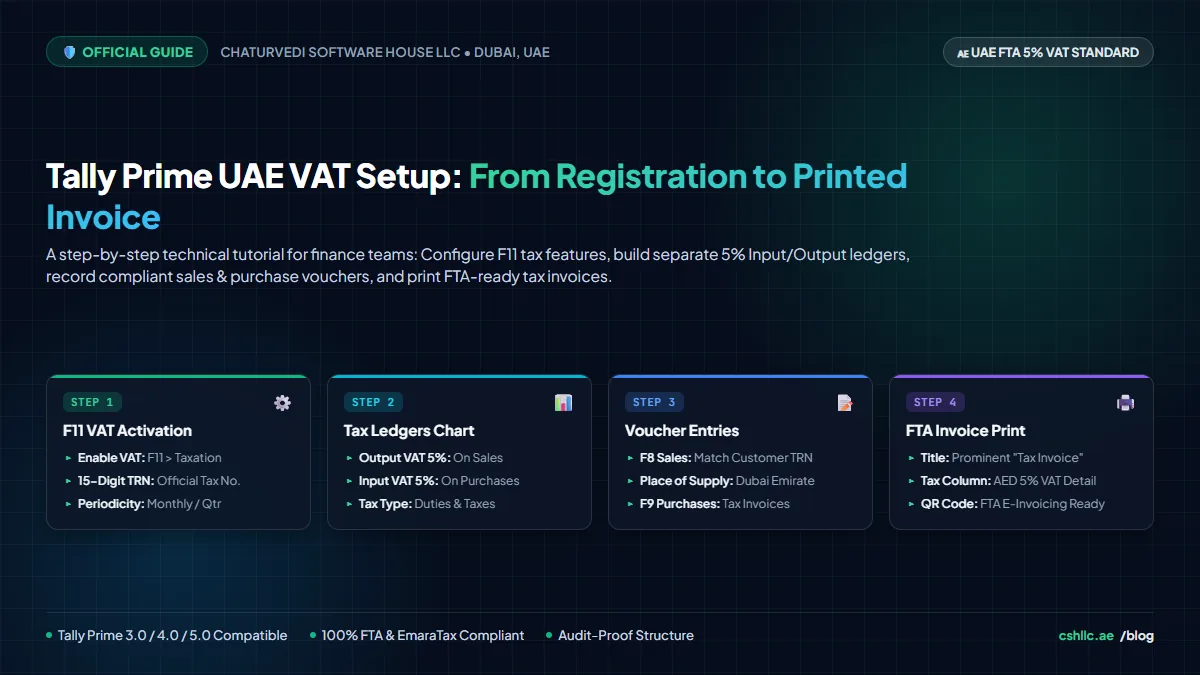
- One-Time F11 Activation: Enable Value Added Tax (VAT) with your 15-digit TRN and Emirate details.
- Segregated Tax Ledgers: Create dedicated Output VAT 5% and Input VAT 5% under
Duties & Taxesto streamline audit reconciliation. - Line-Item Accuracy: Configure VAT rates on Sales/Purchase ledgers or directly on Stock Groups for multi-rate inventory.
- FTA-Compliant Invoicing: Configure print layouts once to include mandatory sequential numbering, TRN, and AED tax breakdowns.
Quick Navigation • Step-by-Step Walkthrough
Picture a small trading company in Dubai that has just received its VAT registration certificate. The owner now has to start charging 5% on sales, claim back tax on supplier bills, and hand customers invoices that hold up if the Federal Tax Authority (FTA) ever asks questions. The good news is that Tally Prime already has the native tools built-in for all of this. They just need switching on and wiring together properly.
Below, we follow that journey step by step, so you can complete your own Tally VAT setup in UAE in one sitting.
The Basics in Thirty Seconds
VAT arrived in the UAE on 1 January 2018. Most goods and services are taxed at the standard rate of 5%. A handful of categories are zero-rated (0%), meaning tax is charged at 0% but you can still reclaim input tax on related business purchases. Others are exempt, meaning no VAT is charged and related input tax usually cannot be recovered.
Your accounting system has to tell these categories apart. If it can’t, your periodic VAT return (Form VAT 201) will be inaccurate, no matter how careful you are elsewhere.
Your Pre-Setup Checklist
Collect these essential documents and parameters before you open Tally:
Part 1: Turning VAT On in Tally Prime
Inside your company data file, press F11 to bring up the Company Features screen. Under the Taxation column, toggle Enable Value Added Tax (VAT) to Yes.
Tally will immediately prompt you with the VAT Details window. Fill in the following mandatory fields:
- Tax Registration Number (TRN): Enter your 15-digit number starting with
100... - Registration date: The effective start date from FTA.
- Emirate: Select your operating Emirate.
- Periodicity of VAT Return: Choose Monthly or Quarterly.
Press Ctrl + A to save. UAE VAT fields will now automatically populate across your ledger masters, stock items, and voucher entry screens.
Part 2: Giving Tax Its Own Accounts (Duties & Taxes)
Think of VAT as money that passes through your business rather than belonging to it. That is why it must sit in its own dedicated balance sheet ledgers under Duties & Taxes, strictly segregated from revenue and operational expenses.
Our Dubai trader creates two primary tax ledgers:
| Ledger Name | Under (Group) | Type of Duty/Tax | Commercial Purpose |
|---|---|---|---|
| Output VAT 5% | Duties & Taxes | VAT (Output) | Tax collected from customers on sales (Liability) |
| Input VAT 5% | Duties & Taxes | VAT (Input) | Tax paid to suppliers on purchases (Asset / Credit) |
Head to Gateway of Tally > Create > Ledger to set up each one. If your business also handles zero-rated exports or exempt financial services, establish separate sub-ledgers for those classifications so they are effortless to isolate at filing time.
Part 3: Teaching Tally Which Transactions Are Taxable
Tax ledgers merely store the numbers. Tally Prime still needs to recognize when and at what percentage to calculate tax. That configuration is applied in three areas:
1. Income Ledgers (Sales Accounts)
Mark VAT as Applicable, specify the nature of transaction as Domestic Standard Rated, and enter 5%.
2. Expense and Purchase Ledgers (Purchase Accounts)
Enable VAT, select the applicable purchase transaction type, and define the 5% rate for input recovery.
3. Customer & Supplier Ledgers (Sundry Debtors & Creditors)
Add each counterparty’s 15-digit TRN plus their Emirate or Country. This allows Tally to automatically treat a domestic B2B sale to Sharjah differently from a zero-rated export to Saudi Arabia or India.
💡 Pro-Tip for Multi-Item Traders: Selling a mix of standard-rated goods and zero-rated items (e.g. basic medicines or international freight)? Set the tax rate directly at the Stock Item or Stock Group level, and Tally will dynamically apply the accurate tax rate line-by-line on mixed invoices.
Part 4: Raising Your First Taxable Sale
Many accountants in Dubai still search for how to make VAT invoice in Tally ERP 9 because legacy systems remain in use across the region. Whether you are operating on Tally.ERP 9 or Tally Prime, the core voucher workflow is straightforward:
Sample Transaction: Trader sells 10 units of an item at AED 200 each (Subtotal: AED 2,000):
- From Gateway of Tally, press F8 to open the Sales Voucher.
- Select the Party A/c Name (Customer).
- Select the Sales Ledger (Standard Rated Sales 5%).
- Enter the stock item, Quantity (
10), and Rate (AED 200). Amount computes to AED 2,000. - Below the item line, select your tax ledger: Output VAT 5%. Tally automatically calculates exactly
AED 100. - The voucher total displays AED 2,100. Press Ctrl + A to save.
- Press Ctrl + P to generate the printout.
Tally Prime streamlines this entire workflow with enhanced search capabilities, keyboard shortcuts, and instant report drill-downs compared to older versions.
Part 5: Making Sure the Printout Passes Inspection (FTA Checklist)
The UAE Federal Tax Authority enforces strict legal rules regarding what a full Tax Invoice must exhibit. Use this checklist as your VAT tax invoice format UAE standard:
- 📌 The clear heading prominently displaying “Tax Invoice”
- 📌 Your registered corporate name, physical address, and 15-digit TRN
- 📌 Customer’s legal name, business address, and TRN (where registered)
- 📌 A unique, sequential invoice number that avoids gaps
- 📌 Date of issue, plus date of supply if different from issue date
- 📌 Description of goods/services delivered, quantity, and unit price in AED
- 📌 The VAT rate applicable (5% or 0%) and any trade discount provided
- 📌 Total VAT payable explicitly expressed in AED
- 📌 The applicable UAE Central Bank exchange rate, if billed in foreign currency (USD, EUR, GBP)
Simplified Tax Invoices: For retail counters or unregistered clients where the gross supply value is under AED 10,000, FTA permits a simplified tax invoice format containing fewer buyer fields.
Part 6: Setting Up the Print Layout Once
Rather than adjusting margins and headers on every single bill, handle your tax invoice configuration in Tally once:
- Open any previously saved sales invoice and press Ctrl + P.
- Click on Configure (C) from the print dialogue.
- Toggle Show Company TRN, Show Tax Analysis of Items, and Show Subtotals to Yes.
- Upload your high-resolution corporate logo and enter bank transfer IBAN details in the footer.
- Preview to confirm compliance and press Esc to save.
Every future tax invoice generated by your team will automatically replicate this verified template.
Five Things Worth Double-Checking Each Month
1. Rate Accuracy
Verify that export consignments correctly reflect 0% and local UAE deliveries reflect 5%.
2. TRN Visibility
Confirm your 15-digit TRN prints clearly on both physical and PDF invoice copies.
3. Ledger Separation
Ensure no supplier input VAT was inadvertently booked into the Output VAT account.
4. Customer Records
Validate that new B2B client TRNs are authenticated on the official EmaraTax portal.
5. Tally Exceptions
Check the “Uncertain Transactions (Corrections Needed)” report before running month-end closing.
A quick 10-minute monthly audit beats a stressful weekend resolving mismatches right before your EmaraTax filing deadline.
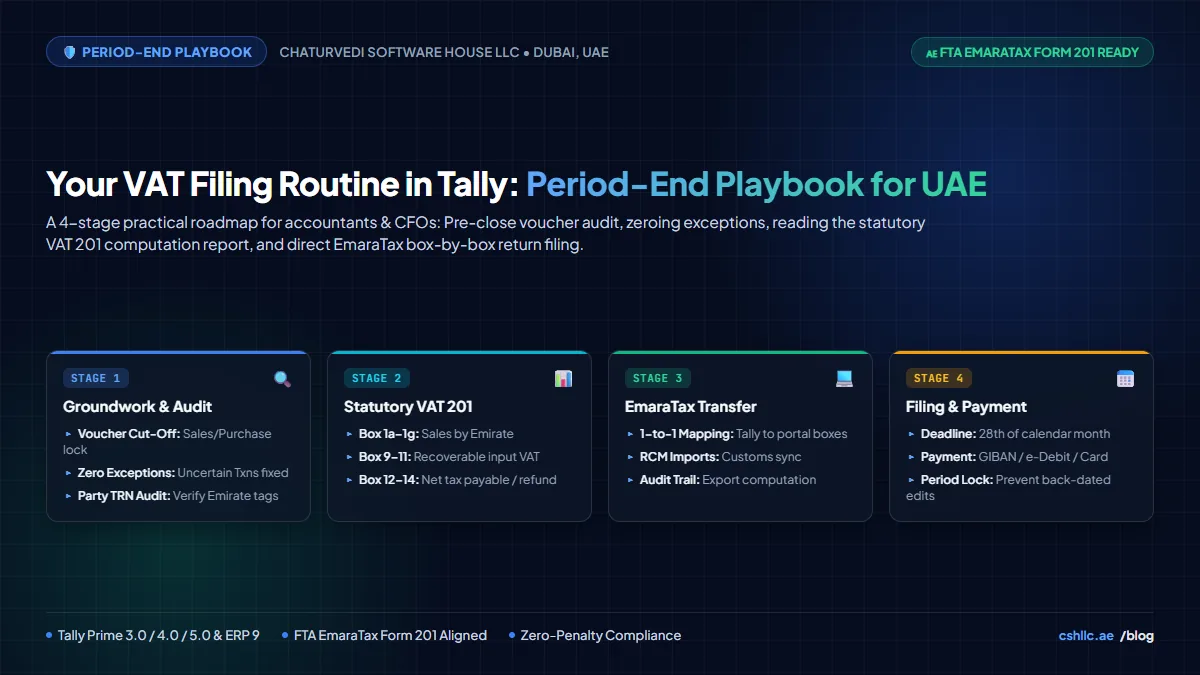
Pulling the Numbers for Your VAT 201 Return
When your tax period closes, Tally Prime equips your accounting department with:
- VAT Computation Report: Real-time overview of total output liability minus recoverable input tax, calculating net tax payable or refundable.
- Return-Ready Summaries: Direct box-by-box mapping corresponding to FTA Form VAT 201 (Box 1a to Box 1g for standard supplies by Emirate).
- Sales & Purchase Registers: Comprehensive transaction registers for voucher-level audit verification.
- Exception Reports: Detailed alerts isolating missing TRNs, invalid tax rates, or mismatch vouchers that require correction before upload.
Frequently Asked Questions (FAQ)
Do I need a separate module for UAE VAT in Tally Prime?
No. Full UAE VAT compliance and FTA reporting are natively integrated into Tally Prime. You simply activate it via Company Features (F11) with UAE set as the country.
Can one ledger handle both input and output tax in Tally?
Technically you could merge them, but accounting standards and FTA audit best practices strongly require maintaining distinct ledgers for Output VAT (Liability) and Input VAT (Asset) to prevent reconciliation errors.
My company is still on Tally.ERP 9. Should we upgrade to Tally Prime?
While Tally.ERP 9 can produce basic VAT invoices, Tally Prime offers significantly faster performance, built-in UAE VAT return diagnostics, automated data splitting, and direct readiness for upcoming UAE e-invoicing mandates.
What if a customer is not VAT-registered?
Leave their TRN field blank in the customer master. You must still charge 5% VAT on standard-rated domestic supplies, and you can issue a simplified tax invoice format.
Wrapping Up
Our Dubai trader navigated from a fresh registration certificate to a fully compliant printed tax invoice in six systematic steps: activating VAT, creating dedicated tax ledgers, configuring transaction masters, recording sales, verifying mandatory invoice fields, and locking in the print layout.
Follow this exact walkthrough, and your Tally Prime system will maintain audit-ready, 100% compliant tax accounting from your first transaction to your year-end return.
📚 Recommended Related Guides
Explore more step-by-step Tally Prime accounting and operations playbooks