We are your reliable technology Partner.
Have any questions? Call Now: +971 4 325 8361 / +971 55 347 5870

Have any questions? Call Now: +971 43 258 361

How to Upgrade & Migrate Company Data from Tally.ERP 9 to TallyPrime
Let’s be completely candid: nobody gets excited about migrating accounting software. You have years of meticulously reconciled ledgers, customer balances, stock transactions, and statutory reports sitting safely inside Tally.ERP 9. The mere thought of something going corrupt halfway through conversion is enough to make any CFO or finance manager delay the transition for another financial quarter.
The reassuring news? Moving your company data to TallyPrime is significantly faster and less stressful than most business owners anticipate. Because Tally has built an automated database translation engine directly into TallyPrime, the software performs all the heavy database restructuring automatically. Your primary responsibility is simple: prepare properly, back up with redundancy, and audit your balances afterwards. This comprehensive playbook walks you through every single step, with practical contingency measures for when you encounter unexpected bumps along the road.
The Golden Migration Rule
Never migrate without an external secondary backup. TallyPrime creates an automated pre-migration backup by default, but taking your own manual snapshot of the 5-digit company folder (e.g., 10000) to an external SSD or cloud storage guarantees 100% rollback capability regardless of power disruptions or hardware failure.
Click any section to jump directly
1. Why Bother Upgrading?
If your current installation of Tally.ERP 9 is still working reliably, it is completely fair to question why you should invest the time and effort into switching at all.
The fundamental justification lies in operational productivity. TallyPrime introduces an overhauled interface where multi-tiered keyboard menus are replaced by intuitive natural search through GoTo (Alt+G). Routine daily tasks—such as checking a customer’s outstanding balance while midway through entering an invoice—take fewer keystrokes and zero interruptions. You also gain modern features including:
- Multi-Tasking Workflow: Open multiple reports, pause voucher entries, and switch contexts seamlessly without losing your draft data.
- Superior Printing & Invoicing: Native support for digital signatures, automated QR code generation, and flexible invoice layouts.
- Modern Operating System Security: Built exclusively for 64-bit Windows architectures, supporting multi-user concurrent data access with enhanced memory management.
2. Get Ready Before You Migrate (Pre-Migration Checklist)
In our experience assisting hundreds of UAE enterprises with accounting transitions, when a migration fails, it is almost never the software’s fault. In 95% of cases, failure occurs because fundamental groundwork was bypassed. Spend 15 minutes completing this checklist before initiating the conversion:
1. Backup Your Company Data
Open Tally.ERP 9 > Alt+F3 (Company Info) > Backup. Select your company and export to an external drive or network share. Additionally, copy the entire raw numeric folder (e.g., C:\Tally.ERP9\Data@01) to a secondary directory.
2. Clean Up Your Books
Any data corruption or unresolved entry in ERP 9 will carry over into TallyPrime. Audit for negative cash balances, unadjusted pending orders, and run a Trial Balance verify. Run a Data Rewrite (Ctrl+Alt+R) in ERP 9 if data indexes feel slow.
3. Check System Prerequisites
TallyPrime strictly requires a 64-bit operating system (Windows 7 64-bit or higher, Windows 10/11 recommended) with minimum 4 GB RAM (8 GB recommended). Ensure at least 15 GB free disk space on the drive hosting your data.
4. Verify Active TSS / License
Confirm your Tally Software Services (TSS) subscription is valid. An active TSS permits a 100% free upgrade to the latest TallyPrime release without purchasing a new software license.
3. Migrating Your Data: Step by Step
Once your preparations and backups are secure, follow this straightforward 4-step procedure:
Install TallyPrime in a Separate Application Directory
Download the official installer for TallyPrime. During setup, select Install New rather than overwriting your existing Tally.ERP 9 folder. For instance, install TallyPrime into C:\Program Files\TallyPrime while leaving C:\Tally.ERP9 intact. This guarantees both systems can operate independently.
Identify Your Company Data Location
In Tally.ERP 9, look at the top path displayed on the Company Info screen (e.g., C:\Tally.ERP9\Data). Each company is stored inside a 5-digit numbered subfolder like 10000 or 10002. You can choose to point TallyPrime directly to this folder, or better, copy the folder into a fresh dedicated directory such as D:\TallyPrimeData@00.
Select Company in TallyPrime & Trigger Migration
Launch TallyPrime. Click Select Company or press Alt+F3. Specify your data directory path. TallyPrime will immediately detect your company and flag it with the status tag “Migration Required”. Press Enter on the company name.
A dialog box will prompt: “Data will be migrated to TallyPrime format. Do you want to take a backup before migrating?” Keep “Backup before migration” set to Yes, define a backup destination path, and click Migrate (R).
Let the Process Complete & Leave It Undisturbed
TallyPrime will now re-index every ledger, master, voucher, and tax rate table. Depending on the size of your historical data (e.g., 5 years of daily retail vouchers vs 2 years of wholesale), this can take between 2 to 25 minutes.
4. When Things Don’t Go to Plan (Troubleshooting Migration Snags)
Even with diligent preparation, technical roadblocks can occasionally surface during data conversions. Here are the most frequent scenarios and their precise diagnostic fixes:
| Reported Error / Symptom | Likely Root Cause | Exact Resolution & Fix |
|---|---|---|
| “Data Migration Failed” or System Crash | File permission lock by antivirus, corrupted data block in ERP 9, or low hard disk space. | Restore your backup. Temporarily add TallyPrime to antivirus exclusion list. Open ERP 9 and press Ctrl+Alt+R on the company to repair data files, then re-run migration. |
| “Company Cannot Be Found / Won’t Open” | TallyPrime data configuration pointing to the wrong folder hierarchy, or network drive disconnect. | Press F1 > Settings > Data Path. Verify Company Data Path matches the folder containing your 5-digit company code. |
| “Trial Balance Discrepancy Between ERP 9 and Prime” | Unbalanced optional vouchers, unaccepted draft journals, or decimal rounding errors in older ledgers. | Generate the Trial Balance (Alt+G > Trial Balance) in both software versions simultaneously. Compare Debits and Credits by group to isolate the variance. |
| “Custom TDL / Invoice Format Incompatibility” | Legacy TDL written for ERP 9 using deprecated menu hooks not recognized by TallyPrime’s UI. | Disable third-party TDL files initially (F1 > TDLs & Add-ons). Contact your Tally partner to recompile the code using TallyPrime Developer. |
5. Best Practice Habits That Make Migration Seamless
Enterprise finance departments that experience zero downtime adhere to three golden habits during accounting upgrades:
The 3-Tier Backup Rule
Maintain three distinct archives: (1) Original ERP 9 raw data, (2) Pre-migration snapshot archive, and (3) Post-migration verified TallyPrime data folder.
Execute a Test Staging Run
Never upgrade your live production database first. Clone the data folder to a secondary PC, execute the test migration, verify key reports, and train staff on GoTo navigation.
Strategic Scheduling
Never migrate during month-end closing or VAT filing week. Schedule the upgrade on a Friday evening or weekend so your accounting team can resume work with zero bottleneck.
6. Extra Checks for UAE Businesses (Tax & Compliance Audit)
For entities operating under UAE jurisdiction, post-migration verification must go beyond debit and credit balances. Ensure your tax and statutory settings are completely aligned:
🇦🇪 UAE Statutory Verification Checklist
Navigate to Alt+G > VAT 201. Confirm that Box 1 (Standard Rated Supplies) and Box 9 (Standard Rated Expenses) match the figures recorded in Tally.ERP 9. Ensure no vouchers appear under “Uncertain Transactions (Corrections Needed)”.
Open a past sales voucher and press Ctrl+P > Preview. Verify your TRN, company legal name, bilingual Arabic/English invoice headers, and line-item tax breakdowns print cleanly according to FTA standards.
Check user roles under Alt+K > User Roles. Ensure accounting clerks, cashiers, and managers maintain correct voucher alteration permissions without unrestricted back-dated entry access.
7. Frequently Asked Questions
Q1: Can I move my Tally.ERP 9 data straight into TallyPrime?
Yes. TallyPrime features an automated, built-in migration utility. You do not need any third-party conversion software, external scripts, or database export-import routines. Selecting your ERP 9 company folder automatically prompts migration.
Q2: Will I lose any old financial transactions during migration?
No. When migration completes successfully, 100% of your historical transactions, past financial years, ledgers, vouchers, stock items, customer TRNs, and audit history are preserved seamlessly in TallyPrime.
Q3: Should I uninstall Tally.ERP 9 before installing TallyPrime?
No, and we strongly suggest keeping Tally.ERP 9 installed for several weeks. Both applications can exist simultaneously on the same workstation, allowing finance staff to cross-examine historical figures until full operational confidence is attained.
Q4: What is the first thing to do if I receive a migration error?
Do not panic. Verify that your external pre-migration backup is safe. Check that your local hard drive has sufficient free storage space. Next, open Tally.ERP 9 and execute a Data Rewrite (Ctrl+Alt+R) on the company folder to repair index tables before retrying.
Q5: Do customized TDL files from Tally.ERP 9 work automatically in TallyPrime?
Standard reporting TDLs frequently transition without issue. However, complex TDL customizations that modify menu structures or older dialogue forms may require code re-compilation in TallyPrime Developer. CSH LLC provides specialized TDL migration services.
Q6: Can both Tally.ERP 9 and TallyPrime run simultaneously on the same computer?
Yes. They install into distinct directories and use separate port configurations for licensing. Just remember that once a company folder is migrated to TallyPrime format, it cannot be reopened in Tally.ERP 9 (which is why your backup copy is crucial).
Summary: Safe Migration in 3 Principles
Migrating from Tally.ERP 9 to TallyPrime ultimately distills into three core disciplines: back up with redundancy, clean up discrepancies beforehand, and audit trial balances afterwards. With these controls in place, the migration is fast, reliable, and completely seamless.
📚 Recommended Related Guides
Tally Prime vs Tally.ERP 9: Key Differences & Feature Comparison
Complete comparative analysis exploring speed, GoTo search, reports, and why UAE businesses are upgrading.
Read Full Guide →

Tally Prime Basics: Groups, Ledgers & Voucher Types Explained
Master Chart of Accounts architecture, primary/sub-groups, ledger creation, and 8 standard voucher types in Tally.
Read Full Guide →
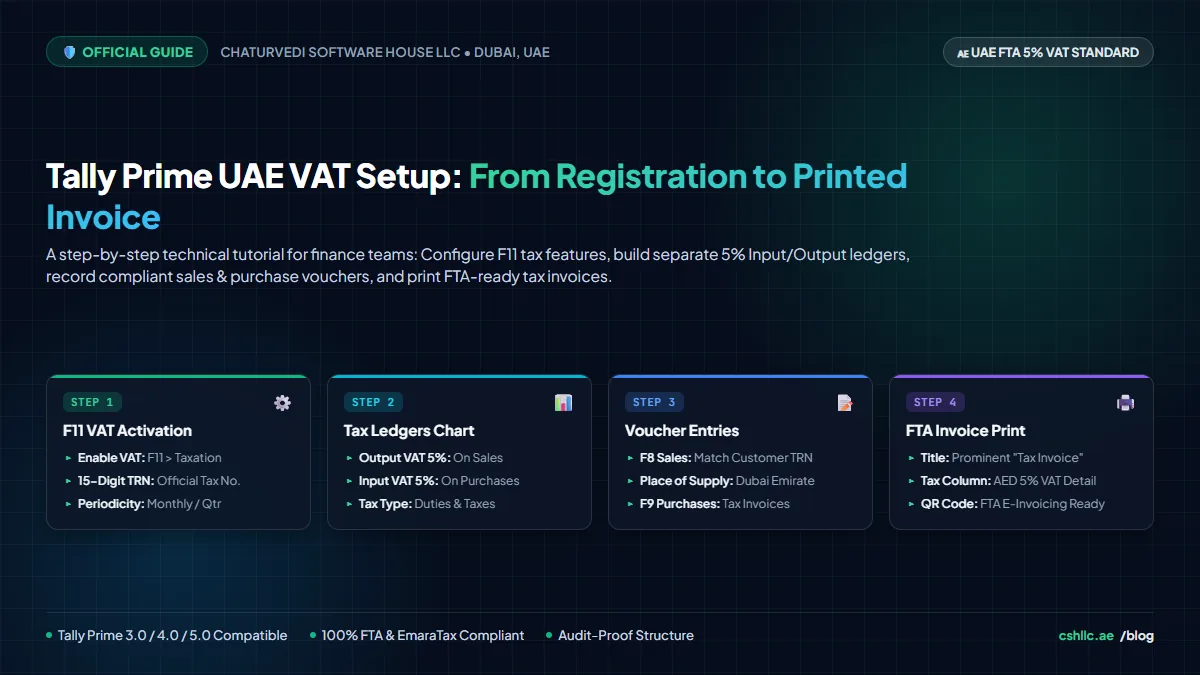
How to Setup 5% UAE VAT & Issue FTA Tax Invoices in Tally Prime
Step-by-step guide to configuring 5% VAT in Tally Prime for UAE: F11 activation, tax ledgers, and FTA compliant invoice printing.
Read Full Guide →
⚙️ Related Tally Services & Solutions
Tally Prime Software
Official Silver & Gold editions, version upgrade assistance, TSS renewals, and multi-user network configurations across the UAE.
Explore Tally Prime →
Annual Support Contracts (AMC)
Year-round expert guidance, automated backup audits, corrupt data recovery, and priority on-site technician response in Dubai and UAE.
Explore AMC Plans →
TDL Customizations
Recompile legacy TDL code for TallyPrime, design customized tax invoices, approval workflows, and specialized MIS reports.
Explore Customizations →
Need Assistance with Tally.ERP 9 to TallyPrime Migration?
Our certified Tally experts can handle your complete data migration, verify ledger balances, recompile custom TDLs, and provide hands-on staff training with zero business disruption.

Chaturvedi Software House (CSH) established in 2006 has been a trusted name in software solutions across the GCC region. Team CSH specializes in offering industry-specific software solutions that solve actual problems you are facing. Over the years, with a huge track record of our prestigious clients we have built a solid presence.
Quick Links
Contact Us
- Address: 513 Al Khaleej Centre, Bur Dubai Dubai U.A.E
- Call Us: +971 4 325 8361/ +971 55 347 5870
- Email Us: inquiry@ca-eim.com
-
Copyright © 2024 Chaturvedi Software House LLC
- All Rights Reserved.
WhatsApp us